Conversations, Files, and Sharing
Aivory keeps conversations, attachments, and tool artifacts in the same workspace. Day to day, you can continue work from past conversations or share a reviewed conversation with others as a read-only snapshot.
Conversation history
The history list on the left is sorted by recent activity. Open a conversation to keep sending messages, rename its title, or use the conversation menu to share, delete, and more. Before deleting, confirm the conversation contains no attachments or artifacts you still want to keep; whether deleted content can be recovered depends on the backups configured by your administrator.
A concrete example: the model generates an interactive chart dashboard in the conversation and packages the result as a downloadable PPTX artifact:
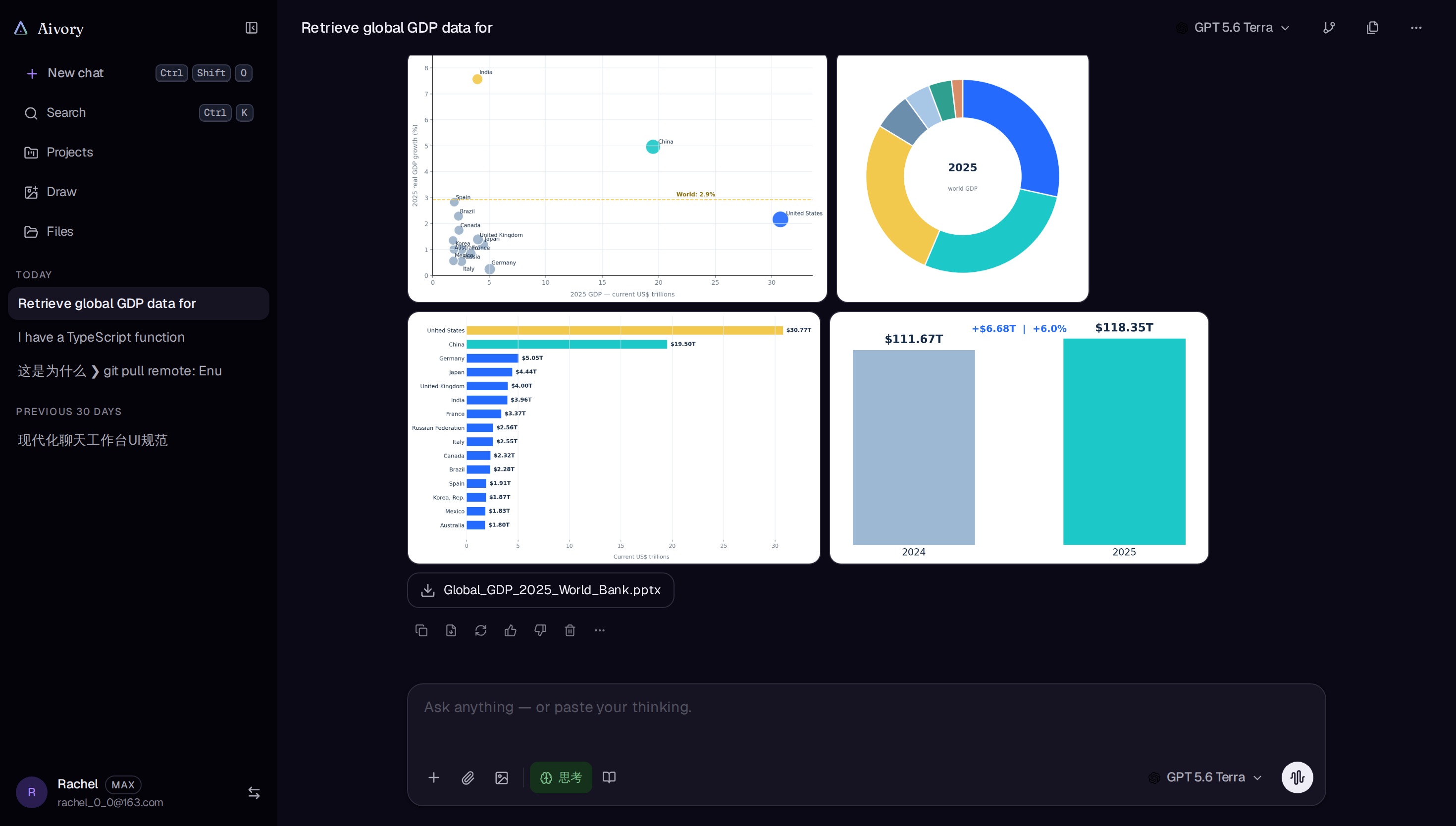
For long-running tasks, organize work under a project or workspace. This keeps related conversations, files, and instructions together and lets team members share them with explicit access permissions.
Sharing a conversation
- Open the three-dot menu on a conversation in the history list on the left.
- Choose "Share" and confirm the conversation content you want to make public.
- Create the link in the share modal and copy the address.
A share link points to a fixed snapshot; it doesn't automatically expose messages added afterward. The snapshot may include references, images, file previews, and tool artifacts from the messages, so review it item by item for sensitive information before creating it.
Anyone with the public link can view the snapshot without signing in. Administrators or the conversation owner can revoke the link in share management; revoking doesn't take back copies recipients have already downloaded, screenshotted, or forwarded again.
Formulas and citations
Math formulas in replies can be clicked directly. After clicking, choose copy to get the original LaTeX text, ready to paste into Markdown, a LaTeX editor, or another conversation. If the copy fails, check your browser's clipboard permissions.
Citations or sub-conversations keep the context of the source messages. Cited text and conversation titles use the same typography as the main conversation; when opening a citation, first verify the source conversation and time to avoid mistaking similar content for the same message.
Uploading files
When you add an attachment in the message editor, wait for the upload status to finish before sending the message. Files typically go through this pipeline:
- Upload: the file is written to local storage or the object storage configured by your administrator.
- Parsing: text, PDF, Office, spreadsheet, and image content is extracted by the available parsers.
- Indexing: when added to a knowledge base, text is chunked and embedded into vectors by an embedding model.
- Retrieval: follow-up questions only inject relevant passages into the model context and show source citations.
Scanned PDFs or images without a text layer may require the administrator to configure MinerU or another OCR service. If parsing fails, download the original file first to confirm it isn't corrupted, then check the task error details in the admin console.
Knowledge base tips
- Put files on the same topic in one knowledge base, and give knowledge bases clear names and access scopes.
- Wait until a document's status shows "Completed" before testing retrieval; documents still parsing won't produce stable results.
- Plan a re-index before changing the embedding model or dimensions; old vectors cannot be mixed with new dimensions.
- When sharing a knowledge base in a workspace, choose read-only permission unless members really need to upload and manage documents.
Privacy checks
Before sharing or uploading, confirm:
- files and conversations contain no personal information or secrets that should not be sent to model providers.
- public snapshots contain no sensitive content hidden in references, images, or artifact links.
- team workspace membership and knowledge base permissions match the actual ownership of the data.
- the production instance has HTTPS configured and the database, Redis, Qdrant, and sandbox are not exposed to the public network.