Administrator first-run setup
Aivory v2.4.7 and later. Screenshots show the Simplified Chinese admin UI; English labels are cited inline.
This page walks through everything from a freshly booted, empty instance to "regular users can chat". Personal and Full editions share the same admin surface and configuration model; they differ only in default dependencies (Personal: embedded SQLite vectors, no local sandbox; Full: PostgreSQL, Redis, Qdrant and an internal sandbox sidecar wired in by compose).
Prerequisites
- The instance is running, via Personal edition or Full edition, and the login page loads in a browser.
- Deployment-level environment variables (
JWT_SECRET,DATABASE_URL, etc.) follow Environment variables. - You have at least one model provider account (OpenAI, Anthropic, Google, or any OpenAI-compatible gateway) and its API key.
How the initial administrator is created
Understanding the bootstrap mechanism helps with troubleshooting and automation:
- A brand-new database contains no users at all, and no environment variable can seed an admin — there is no
ADMIN_PASSWORD-style startup parameter. - On startup the frontend probes
GET /api/public/needs-setup, which returns{needs_setup: true}while the user count is 0; the app then routes to the/setupinitialization screen. - Submitting name, email and password on
/setupcallsPOST /api/setup(a public, per-IP rate-limited endpoint). The account becomes an active admin immediately, is signed in, and skips email verification. - Once at least one user exists, the
/setupchannel closes permanently (repeat attempts return 409). It cannot mint extra admins. Additional administrators are promoted from existing accounts under "Users & access → Users". - Every admin page lives under
/adminand requires the admin role.
Adding more administrators
After initialization, additional admins can only be promoted by an existing one: open "Users & access → Users", find the account, and change its role to admin. Keep at least two independent admin accounts (different sign-in methods are even better) so a single unavailable person never locks the instance.
Local quick path (optional)
A single-machine dev instance needs no Docker:
npm run build                                   # frontend into dist/
cd server && go build -o aivory ./cmd/api
STATIC_DIR=../dist ./aivory                     # open http://localhost:8787
The first account registered on /setup likewise becomes admin automatically. Note: in development mode without JWT_SECRET, the process mints a random ephemeral key, so every restart invalidates all sessions — that is expected, not a bug.
/admin lands on "Overview → Admin overview". The configuration health panel lists warnings that currently block users (no enabled channel, no default model, and so on), and a skippable guided tour — reopenable via "review setup tour" — walks the same checklist this page describes.
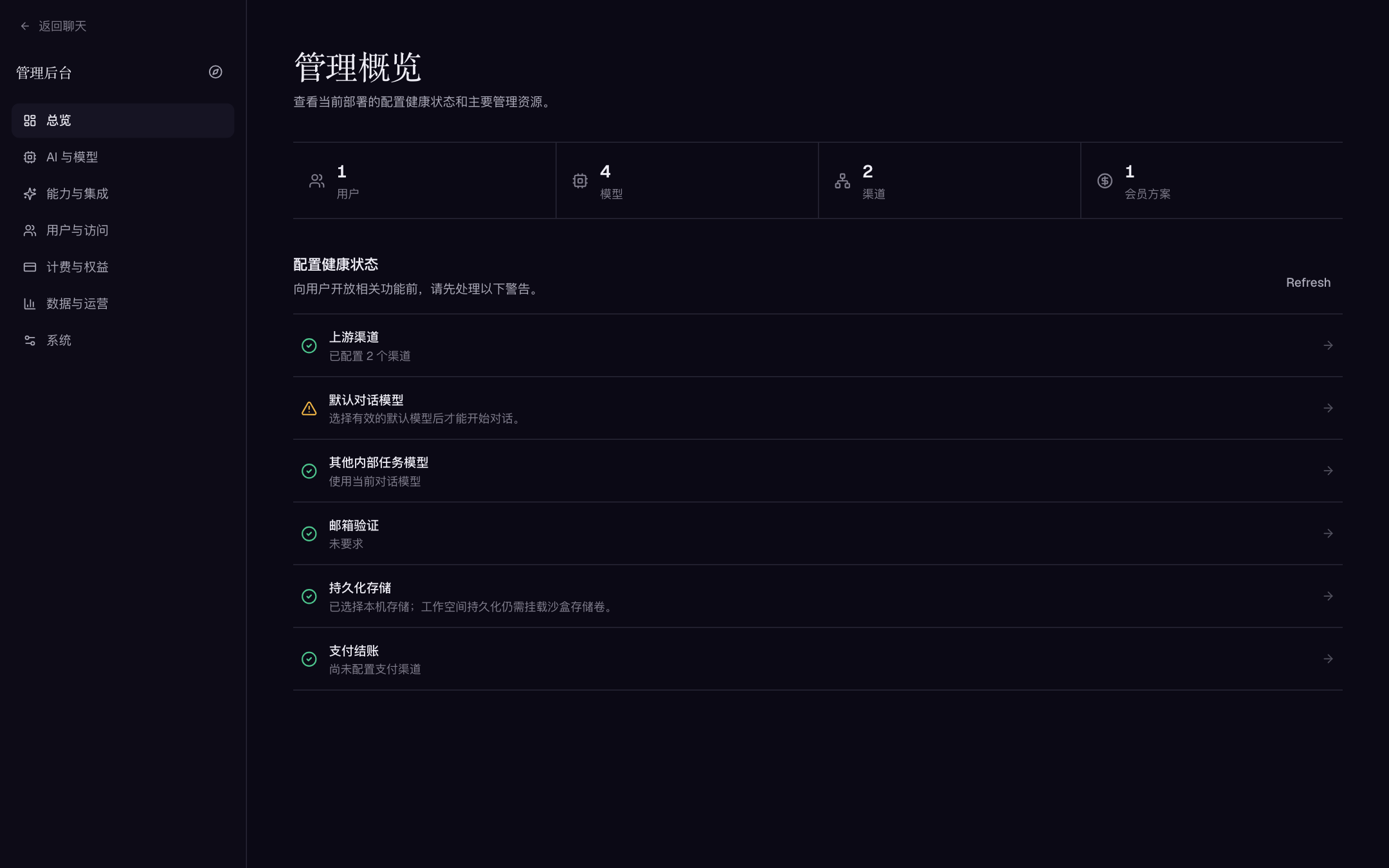
Admin overview. Clear the configuration-health warnings first; treat recommended settings as phase two. Model names in screenshots are placeholders from a test instance.
Admin screenshots come from a local test instance with placeholder channels and dummy keys. They illustrate layout only — never copy names from them as real model IDs or endpoints.
The working baseline: three steps
Completing these three steps gives regular users real chat. Do not treat task models, web search, embeddings, email, or the Python sandbox as hard prerequisites for the first conversation.
ENABLE_MOCK_PROVIDER=true (Personal compose) seeds a Mock channel that returns controlled fake responses without any real network calls — a zero-cost way to validate the full "channel → model → default model → streamed reply" path. Turn it off and restart before real users arrive.
| # | Where | Done when | Common mistake |
|---|---|---|---|
| 1 | AI & models → Channels | At least one enabled channel with a working Base URL, type and API key | Base URL doesn't match the provider's format, or the key lacks permission |
| 2 | AI & models → Models | At least one enabled chat model on that channel with a non-empty request_id | Only embedding/image/voice models added, or the parent channel is disabled |
| 3 | AI & models → Model policy | "Default chat model" points to a still-valid chat model | Selecting a deleted, disabled, or channel-disabled model |
Step by step:
Step 1: create a working channel
- Go to "AI & models → Channels" and click "New channel".
- Fill in:
- Name — admin-facing only; mark environment, region, or account (e.g.
OpenAI prod). - Type — must match the provider's protocol family (OpenAI / Claude / Gemini, etc.). Type decides signing and request shape; identical model names do not imply compatible protocols.
- API format — chat-models-only variant (e.g. OpenAI chat vs responses). Keep the default unless the provider documents otherwise.
- Base URL — blank uses the vendor default; for gateways, enter the upstream API root (OpenAI-type may include
/v1and similar paths). - API key — a server-side secret stored in the database and visible only to the admin UI.
- Name — admin-facing only; mark environment, region, or account (e.g.
- Save and enable. The same dialog lets you click "Fetch from upstream" and tick models to create their records right away.
Field-level detail, per-type differences and connectivity testing: Channels, models, and policies.
Step 2: add a chat model
A channel alone never surfaces models in the user picker — you still need model records:
- Go to "AI & models → Models", click "Fetch models from a channel", pick the channel, and bulk-add the upstream models you want; providers that refuse listing need "New model" with a manual request ID.
- Verify each record: Kind = chat, Channel correct,
request_idmatching the provider docs exactly, Enabled (visible to users) on. - Start with just a few validated models. Policy, quotas and tags can follow.
Step 3: set the default model and test for real
- Open "AI & models → Model policy" and choose the model you just enabled as Default chat model.
- Start a short new conversation on the user side and confirm a real streamed upstream response.
- If you see channel errors, quota errors, or "model not found", fix steps 1–2 before enabling anything else.
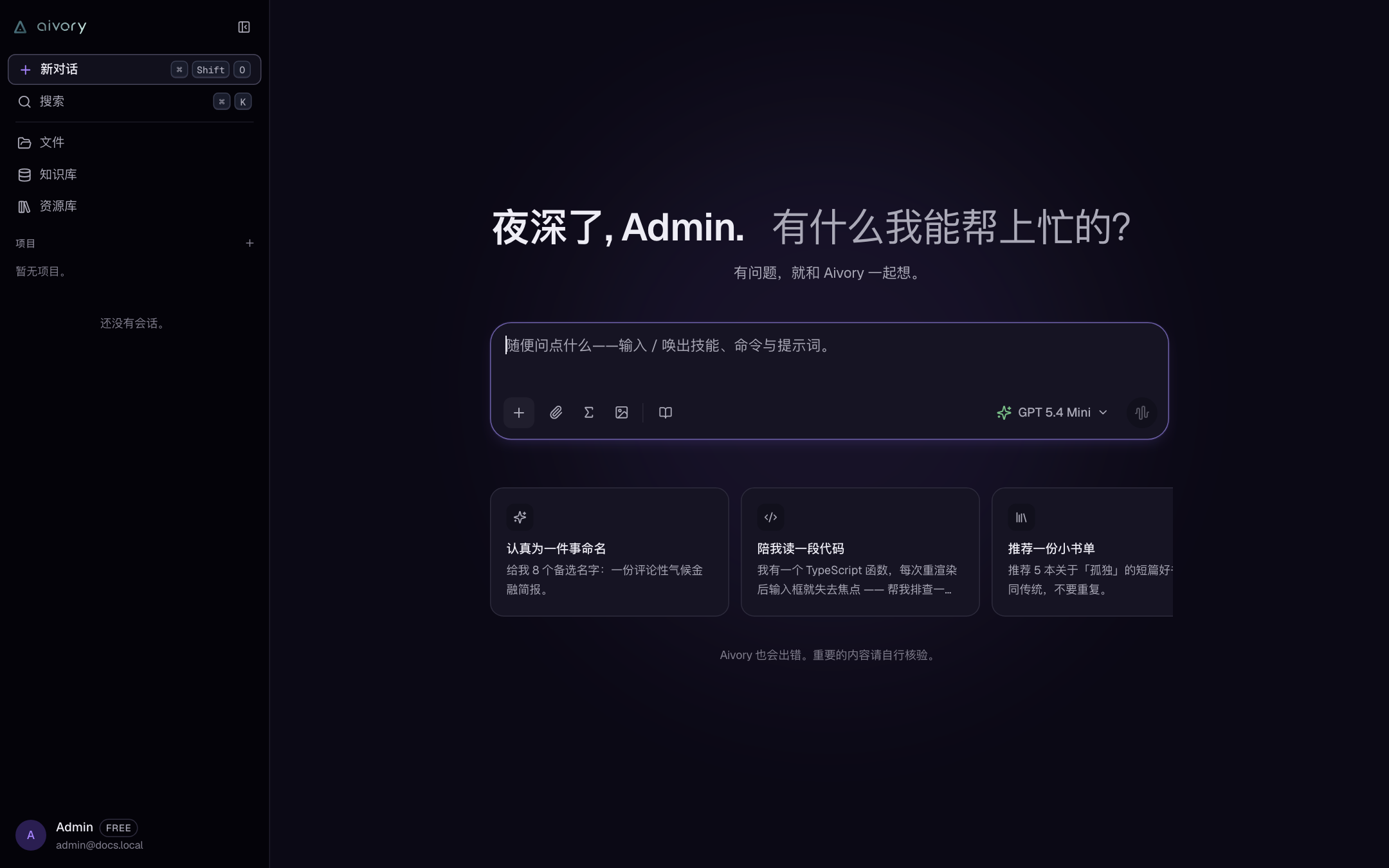
Once the three steps are done, regular users see the enabled chat models on the welcome screen.
If the default model's channel gets disabled or the model deleted, the Model policy page warns that "some saved model policies are currently unavailable". Re-run a test message after every policy change — a still-selectable dropdown entry is not proof the request will succeed.
Making it better: enable by scenario
After the three steps, extend in this order rather than flipping every switch on day one:
| Capability | Configure first | When you need it | Personal vs Full |
|---|---|---|---|
| Knowledge bases & RAG | Embedding model, matching dimension, parsing strategy | Answers grounded in private documents | Personal uses SQLite embedded vectors; Full uses Qdrant |
| Web search | Search provider and key / self-hosted endpoint | Real-time internet answers | Same setup |
| Python & file execution | Reachable sandbox, resource limits, per-model tool grants | Computation, charts, generated files | Personal has no sandbox by default (opt-in profile); Full ships one |
| MCP, skills, prompts | Start with one low-risk service; test and sync | Connecting external business systems | Same setup |
| Voice input | STT provider and credentials | Mic dictation | Same setup |
| SMTP, sender address, TLS | Email verification, password reset, notices | Full production deployments should prioritize this | |
| OAuth & registration | Finish the HTTPS domain first; validate one provider | Third-party sign-in, org entry points | Same; see Users, sign-in, and workspaces |
| Workspaces, plans, payments | Permissions, quotas, credits, payment callbacks | Team or commercial users | See Plans, credits, and payments |
Configuration precedence and change management
Admin settings and environment variables have different jobs; don't mix them:
- Admin UI settings persist to the database
settingstable and take effect on the next request without restart: channel keys, models, registration policy, SMTP, object storage, search, sandbox URL/key, credit conversion — nearly everything day-to-day. - Environment variables carry boot defaults and topology:
DATABASE_URL,REDIS_URL,QDRANT_URL,VECTOR_BACKEND,JWT_SECRET,ALLOWED_ORIGINS,MAX_UPLOAD_BYTES, and so on. Changing them restartsaivory-api. - The official compose files pin high-priority values for database, Redis, Qdrant and the built-in sandbox; adding a same-named variable in
.envmay not override them. Read the deploy files before editing the environment. - The "Backup & Migration → Export config" ZIP contains plaintext channel, OAuth, SMTP, payment and storage credentials. Treat it like a password vault.
Before onboarding real users, build a post-change acceptance checklist: admin and regular logins, a default-model conversation, a small upload, a knowledge-base retrieval, one restricted tool call, a backup export, and — where relevant — an OAuth callback and a payment-sandbox round trip. See Upgrades, backup, and restore.
First week after launch
| When | Action |
|---|---|
| D0 | Finish the three steps + the acceptance checklist below; run one backup export drill |
| D1 | Read real D0 cost and error rates in "Usage & billing"; fix model pricing or swap the default model if needed |
| D2–D3 | Enable the first enhancement (search or knowledge bases), repeating "configure → validate at low traffic → widen" |
| D4–D5 | Set up email and the registration policy; run the whole product through a regular test account |
| D7 | Perform an actual restore drill (import the backup in isolation); log what it taught you |
Don't open sign-up, expose expensive models, connect production payments, enable every tool at once, or change network topology in the same window. Every step needs a revertible "previous snapshot" — the admin config export is itself a rollback asset.
Day-one acceptance checklist
Tick every item before inviting real users; each row states the pass condition:
| # | Check | Pass condition |
|---|---|---|
| 1 | Admin login | Two admin accounts can sign in independently (ideally via different methods) |
| 2 | User sign-up/login | A regular account follows the intended policy; banned-state behavior is correct |
| 3 | Default-model chat | A short question streams to completion with no channel error |
| 4 | Upload | A small image uploads and is readable by a vision model (if claimed) |
| 5 | Knowledge-base retrieval | A text file reaches ready state; an exact sentence from it hits with a citation |
| 6 | Tool call | At least one enabled tool (e.g. web search) fires correctly in conversation |
| 7 | Stop generation | Hitting "stop" mid-answer terminates immediately with no dirty state |
| 8 | Disconnect replay | Refreshing during generation still finishes server-side and replays |
| 9 | Backup export | A full backup ZIP is produced and downloaded |
| 10 | Config export custody | The (plaintext-credential) config ZIP is in controlled encrypted storage |
| 11 | HTTPS and origins | No mixed-content warnings on the real domain; writes aren't CSRF-blocked |
| 12 | Metering visible | The test calls above appear in "Usage" and "Usage & billing" |
First-run troubleshooting quick lookup
| Symptom | Cause | Fix |
|---|---|---|
/setup never appears; straight to login | The instance already has users; setup is one-time | Sign in with an existing account; use "forgot password" (needs SMTP) if locked out |
| Setup submit returns 409 | At least one user already exists | Expected — that's the anti-hijack gate |
| Logged in, but every save returns "cross-site request blocked" | ALLOWED_ORIGINS lacks the browser's actual origin | Set exact, path-less origins (comma-separated) and restart (Domain, HTTPS, and OAuth) |
| "request signature expired" | Client/proxy clock skew beyond the signature window | NTP-sync; make sure the proxy doesn't rewrite the /api path |
| Nothing streams / output arrives in one blob | Reverse proxy buffering the SSE stream | Disable response buffering at the proxy (same page as above) |
| Policy page warns "some saved model policies are currently unavailable" | A referenced model was disabled/deleted or its channel is off | Re-pick available models, then re-test |
| Users see no models at all | The model isn't enabled, or its parent channel is disabled | Check both the channel "Enabled" and model "Enabled (visible to users)" switches |
| Re-login required after every restart (dev) | No JWT_SECRET set, so an ephemeral key is generated | Set a fixed JWT_SECRET of at least 32 characters |
Next steps
- Connect more providers, policies and fallbacks → Channels, models, and policies
- Tighten access before opening sign-up → Users, sign-in, and workspaces
- Ground answers in private documents → Knowledge bases, RAG, and storage
- Enable search, Python and MCP → Tools, MCP, and sandbox